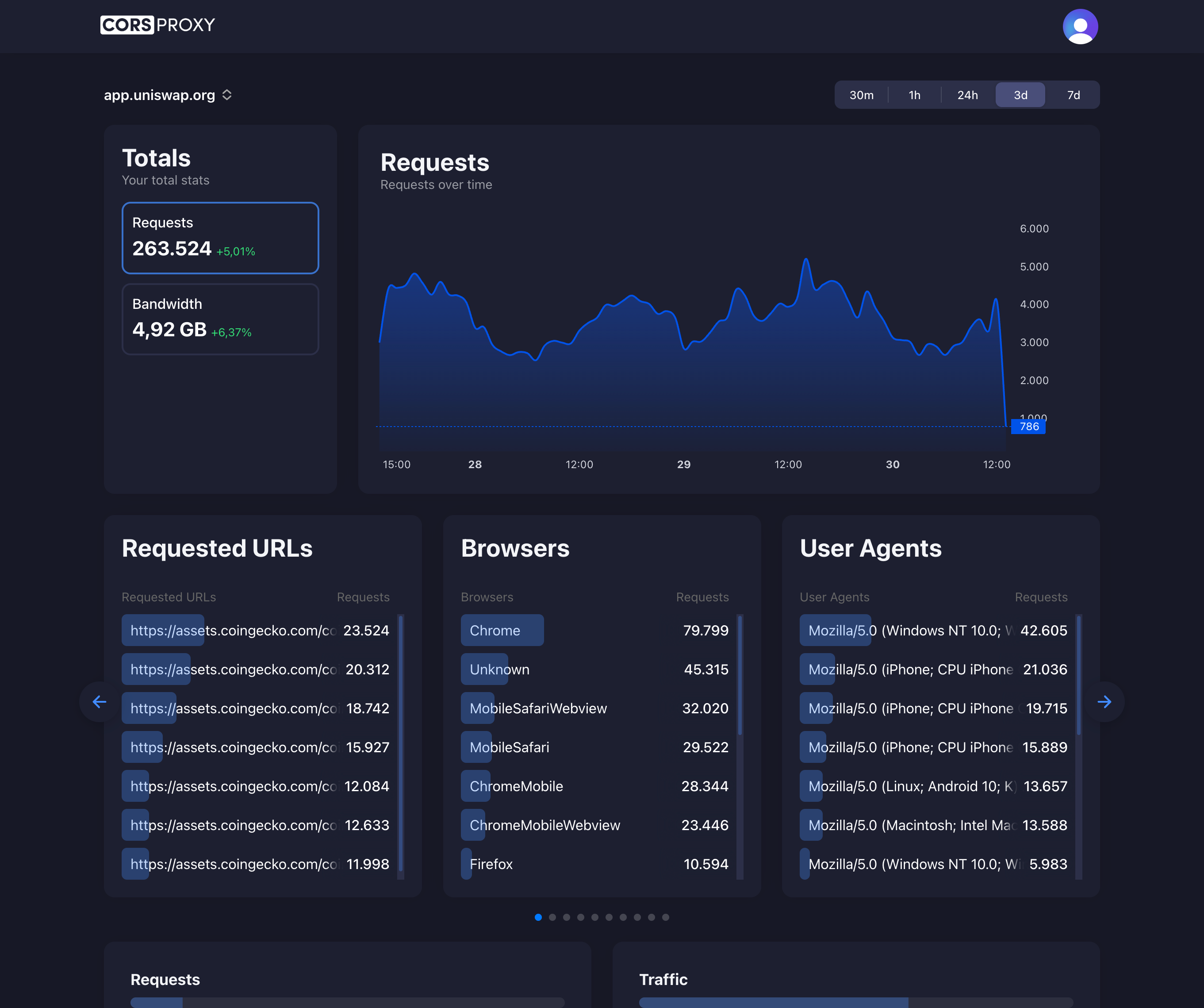
Before copying a CORSPROXY request, replace the API-key placeholder with your account key and register the browser app’s domain. Free is for browser requests; server-side use needs a paid plan, and conversion, extraction, or custom caching needs Production. Follow the first-request guide for setup and error diagnosis.
Itch.io is one of the most popular platforms for hosting indie games, including browser-based HTML5 and WebGL games. However, developers frequently encounter CORS (Cross-Origin Resource Sharing) issues when their games try to communicate with external servers or require specific browser features. This comprehensive guide explains why these issues occur and how to solve them.
Table of Contents
- Understanding Itch.io’s Hosting Architecture
- Common CORS Issues on Itch.io
- SharedArrayBuffer and Cross-Origin Isolation
- Connecting to External APIs
- Unity WebGL Games on Itch.io
- Godot Web Exports
- Using a CORS Proxy
- Best Practices and Workarounds
Understanding Itch.io’s Hosting Architecture
When you upload a game to Itch.io, it gets served from their CDN (Content Delivery Network). Your game runs from one of these domains:
https://html-classic.itch.zonehttps://html.itch.zonehttps://*.itch.zone
Previously, games also loaded from https://v6p9d9t4.ssl.hwcdn.net, but this domain has been permanently disabled.
Why This Matters
Your game’s “origin” for CORS purposes is the Itch.io domain, not your own domain. This means:
- Any request to your own servers is a cross-origin request
- Requests to third-party APIs are cross-origin requests
- The Itch.io API itself doesn’t support browser-side requests
Iframe Embedding Complications
When your game is embedded in an iframe on an Itch.io game page (rather than opened in fullscreen/separate window), additional restrictions may apply due to how iframes interact with cross-origin policies.
Common CORS Issues on Itch.io
Issue 1: External API Calls Blocked
Symptom:
Access to fetch at 'https://api.yourserver.com/scores' from origin
'https://html.itch.zone' has been blocked by CORS policy
Cause: Your backend server doesn’t include the Itch.io domain in its CORS configuration.
Issue 2: Itch.io API Access Denied
Symptom:
No 'Access-Control-Allow-Origin' header is present on the requested resource
Cause: The Itch.io API is designed for server-side access only. It doesn’t include CORS headers because your API key must remain private.
Issue 3: Asset Loading Failures
Symptom: Images, audio, or other assets fail to load with CORS errors.
Cause: External CDNs or asset servers aren’t configured for cross-origin access.
Issue 4: SharedArrayBuffer Not Available
Symptom:
Error: The following features required to run Godot projects on the Web are missing:
- Cross Origin Isolation
- SharedArrayBuffer
Cause: Browser security requirements for multi-threaded WebAssembly.
SharedArrayBuffer and Cross-Origin Isolation
Modern game engines like Godot (3.3+) and Unity use multi-threading in WebAssembly for better performance. This requires SharedArrayBuffer, which browsers only enable under specific security conditions.
Required HTTP Headers
For SharedArrayBuffer to work, the server must send:
Cross-Origin-Opener-Policy: same-origin
Cross-Origin-Embedder-Policy: require-corp
Itch.io’s Position
Itch.io has had a complicated relationship with these headers:
- They initially enabled the headers for new games
- This broke existing games that loaded external resources
- They reverted the changes and are working on a solution with two CDN configurations
Current Workarounds
Option 1: Single-Threaded Fallback
Configure your game to fall back to single-threaded mode when SharedArrayBuffer isn’t available:
For Godot:
- Export with “Thread Support” set to “Optional”
- The game will run slower but remain functional
For Unity:
- Build without multi-threading enabled
- Use WebGL 1.0 compatibility mode if needed
Option 2: Pop-Out Window
Games often work correctly when opened in a separate window (using Itch.io’s “Open in new window” button) rather than playing in the embedded iframe.
Connecting to External APIs
If your game needs to communicate with external servers (leaderboards, multiplayer, analytics), you have several options.
Option 1: Configure Your Server
Update your server’s CORS configuration to allow requests from Itch.io domains:
Node.js/Express:
const cors = require('cors');

const corsOptions = {
  origin: [
    'https://html-classic.itch.zone',
    'https://html.itch.zone',
    /\.itch\.zone$/  // Allow all itch.zone subdomains
  ],
  methods: ['GET', 'POST', 'PUT', 'DELETE'],
  credentials: true
};

app.use(cors(corsOptions));
Nginx:
location /api {
    set $cors_origin "";
    if ($http_origin ~* "^https://.*\.itch\.zone$") {
        set $cors_origin $http_origin;
    }

    add_header 'Access-Control-Allow-Origin' $cors_origin always;
    add_header 'Access-Control-Allow-Methods' 'GET, POST, OPTIONS' always;
    add_header 'Access-Control-Allow-Headers' 'Content-Type' always;

    if ($request_method = 'OPTIONS') {
        return 204;
    }
}
Option 2: Use a CORS Proxy
When you can’t modify the target server, route requests through a CORS proxy like corsproxy.io:
JavaScript Example:
const CORS_PROXY = 'https://corsproxy.io/?key=YOUR_API_KEY&url=';

async function fetchLeaderboard() {
    const apiUrl = 'https://api.leaderboards.com/scores';
    const response = await fetch(CORS_PROXY + encodeURIComponent(apiUrl));
    return response.json();
}
Option 3: Embed Data in Your Build
For static data (levels, configurations), consider embedding it directly in your game files:
// Instead of loading levels.json via fetch
// Include the data as a JavaScript file
const LEVELS = [
    { id: 1, name: "Tutorial", data: [...] },
    { id: 2, name: "Forest", data: [...] }
];
Unity WebGL Games on Itch.io
Unity WebGL builds commonly encounter CORS issues on Itch.io.
Why C# and GDScript Code is Subject to CORS
CORS is a browser security mechanism, so you might wonder why it affects C# (Unity) or GDScript (Godot) code. When you build for WebGL/HTML5, your game code compiles to WebAssembly (WASM) that runs inside the browser. Network requests from
UnityWebRequestor Godot’sHTTPRequestuse the browser’s fetch/XMLHttpRequest APIs under the hood. The browser enforces CORS on these requests regardless of what language originally made them. This is why the same code works in native builds but encounters CORS errors in web exports.
UnityWebRequest with CORS Proxy
using UnityEngine;
using UnityEngine.Networking;
using System.Collections;

public class ItchIONetworking : MonoBehaviour
{
    private string CorsProxy(string url)
    {
        #if UNITY_WEBGL && !UNITY_EDITOR
            return "https://corsproxy.io/?key=YOUR_API_KEY&url=" + UnityWebRequest.EscapeURL(url);
        #else
            return url;
        #endif
    }

    public IEnumerator SubmitScore(int score)
    {
        string url = CorsProxy("https://yourserver.com/api/scores");

        WWWForm form = new WWWForm();
        form.AddField("score", score);

        using (UnityWebRequest request = UnityWebRequest.Post(url, form))
        {
            yield return request.SendWebRequest();

            if (request.result == UnityWebRequest.Result.Success)
            {
                Debug.Log("Score submitted!");
            }
        }
    }
}
Loading External Assets
public IEnumerator LoadExternalTexture(string imageUrl)
{
    // Always use CORS proxy for external images on Itch.io
    string proxiedUrl = "https://corsproxy.io/?key=YOUR_API_KEY&url=" + UnityWebRequest.EscapeURL(imageUrl);

    using (UnityWebRequest request = UnityWebRequestTexture.GetTexture(proxiedUrl))
    {
        yield return request.SendWebRequest();

        if (request.result == UnityWebRequest.Result.Success)
        {
            Texture2D texture = DownloadHandlerTexture.GetContent(request);
            GetComponent<Renderer>().material.mainTexture = texture;
        }
    }
}
Godot Web Exports
Godot games face unique challenges on Itch.io, especially with threading requirements.
HTTP Requests in Godot
extends Node

const CORS_PROXY = "https://corsproxy.io/?key=YOUR_API_KEY&url="

func _ready():
    # For web builds, use the CORS proxy
    var url = "https://api.example.com/data"
    if OS.has_feature("web"):
        url = CORS_PROXY + url.uri_encode()

    var http_request = HTTPRequest.new()
    add_child(http_request)
    http_request.request_completed.connect(_on_request_completed)
    http_request.request(url)

func _on_request_completed(result, response_code, headers, body):
    if result == HTTPRequest.RESULT_SUCCESS:
        var json = JSON.parse_string(body.get_string_from_utf8())
        print(json)
Export Settings for Itch.io
- In Export settings, set Thread Support to “Disabled” or “Optional”
- Enable VRAM Texture Compression for the web
- Consider disabling GDExtension if not needed (reduces compatibility issues)
Fallback for Missing Features
func _ready():
    if OS.has_feature("web"):
        # Check if we're running in a restricted environment
        var js_code = """
            (function() {
                return typeof SharedArrayBuffer !== 'undefined';
            })();
        """
        var has_sab = JavaScriptBridge.eval(js_code)

        if not has_sab:
            show_single_thread_warning()
Using a CORS Proxy
A CORS proxy like corsproxy.io acts as an intermediary that adds the necessary CORS headers to responses.
How It Works
- Your game sends a request to the proxy
- The proxy fetches the resource from the target server
- The proxy adds
Access-Control-Allow-Originheaders - Your game receives the response without CORS errors
Implementation Pattern
class APIClient {
    constructor(baseUrl, useCorsProxy = false) {
        this.baseUrl = baseUrl;
        this.corsProxy = 'https://corsproxy.io/?key=YOUR_API_KEY&url=';
        this.useCorsProxy = useCorsProxy;
    }

    buildUrl(endpoint) {
        const url = this.baseUrl + endpoint;
        if (this.useCorsProxy) {
            return this.corsProxy + encodeURIComponent(url);
        }
        return url;
    }

    async get(endpoint) {
        const response = await fetch(this.buildUrl(endpoint));
        return response.json();
    }

    async post(endpoint, data) {
        const response = await fetch(this.buildUrl(endpoint), {
            method: 'POST',
            headers: { 'Content-Type': 'application/json' },
            body: JSON.stringify(data)
        });
        return response.json();
    }
}

// Usage - enable proxy for web builds
const isWeb = typeof window !== 'undefined' && window.location.hostname.includes('itch');
const api = new APIClient('https://api.mygame.com', isWeb);
Best Practices and Workarounds
1. Test on Itch.io Early
Don’t wait until release to test your game on Itch.io. Upload a test build early to catch CORS issues before they become critical.
2. Provide Offline Functionality
Design your game to work without network features when CORS issues occur:
async function loadLeaderboard() {
    try {
        const scores = await fetchFromServer();
        displayScores(scores);
    } catch (error) {
        console.warn('Could not load online leaderboard:', error);
        displayLocalScores();
        showOfflineNotice();
    }
}
3. Use LocalStorage for Persistence
Instead of relying on external servers for save data, use browser storage:
function saveGame(data) {
    localStorage.setItem('gameProgress', JSON.stringify(data));
}

function loadGame() {
    const saved = localStorage.getItem('gameProgress');
    return saved ? JSON.parse(saved) : null;
}
4. Consider a Downloadable Version
For games that heavily rely on features blocked by CORS restrictions, offer a downloadable version alongside the web version.
5. Document Known Issues
Be transparent with players. Add a note to your game’s description if certain features require playing in fullscreen mode or downloading the game.
6. Future-Proof Your CORS Configuration
If you control a server, allow the itch.zone domain to cover all current and future Itch.io subdomains:
// This regex matches any itch.zone subdomain
const itchOrigin = /^https:\/\/.*\.itch\.zone$/;
Conclusion
CORS issues on Itch.io stem from the fundamental architecture of web security. While Itch.io continues to work on better solutions for features like SharedArrayBuffer, developers can work around most limitations by:
- Configuring their own servers to accept requests from Itch.io domains
- Using CORS proxies like corsproxy.io for third-party APIs
- Designing games with graceful fallbacks for restricted environments
- Embedding static data directly in game builds
By understanding these issues and implementing proper solutions, you can ensure your game works reliably for all players on Itch.io.